The problem was the export output, it is fixed now
1 Like

Have you installed the right mod? The FX ASI BUILD shouldn’t be a problem if you’re using Akkariin’s release.
Can you share the link plz
Use the search bar. Most issues have already been solved and they’re right above those comments.
Quick question! How do you achieve the DOF effect in the video? I’ve tried to, but it doesn’t seem to do so :c
Try using ENB’s DOF or download the one made by Marty Mcfly (Which is the one I’m using) and replace it in the .fx files. I heard that Reshade’s DOF might work too but I’m not sure about that. Didn’t work for me so I just went straight to ENB.
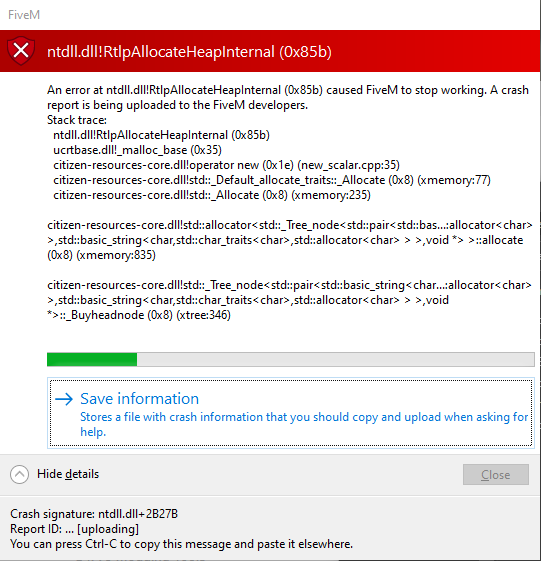
Okay, I’m getting a new problem here.
I got it working but not really, my fivem freezes and crashes as soon as it loads the first frame after I press enter to export?
Thoughts?
Does the .log file show anything related to the issue?
*And make sure you’re running Fullscreen/Borderless when exporting. Also make sure it’s installed properly.
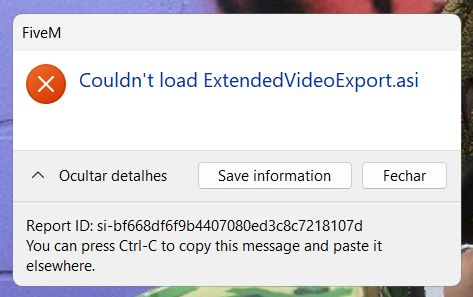
My fivem was crashing a lot and I decided to clear the cache. I was working serving my clients and exporting videos on FIVEM in 4k normally, however, after deleting the cache and entering fivem I come across this error message: (picture below) if I remove the file from the fivem folder it opens normally, if I return the error persists.
Has it happened to anyone? I don’t know what to do
Hey guys, there have been a lot of posts… Can we get a fresh comment here with the files we need for FiveM R* editor with EVE and a fresh tutorial on installation?
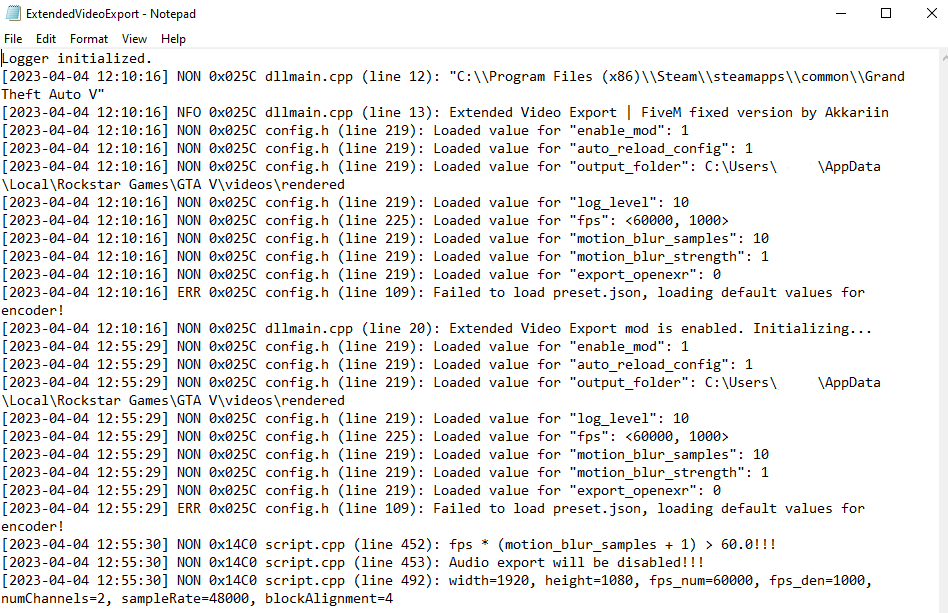
The preset.json file seems to be missing. Have you downloaded one already? CTNZ provided one above. Make sure to install it in both FiveM and root GTAV folders. Also try Right click → Properties and make sure that windows is not blocking the file.
You deleted the EVE folder that belongs inside the cache folder, under subprocesses.
Just redownload, or open up, the downloaded EVE files and drag and drop the EVE folder back inside FiveM.app\data\cache\subprocess
Step 1: Download the build provided by Akkariin (don’t forget to install the dependencies too or it won’t work), the settings.exe tool and CTNZ’s preset.json.
Step 1.2: Right click all .zip/.exe files and click on properties, then make sure Windows isn’t blocking it. If so, unlock it, then apply and accept.
Step 2: Open the EVE.zip file and drag the .asi file into FiveM.app/Plugins. Then drag the EVE folder into FiveM.App/data/cache/subprocess.
And then do the same in the GTAV root folder. Just drag both .asi and EVE folder inside the game. Make sure to leave the DLL files inside the FiveM path and delete the ones inside the GTAV folder. Otherwise it won’t work.
Step 3: Drag the preset.json file inside both FiveM and GTAV EVE folders. The .exe goes inside the FiveM folder only.
Step 4: Now that you’ve installed it, it’s time to set it up. Open any of the two ExtendedVideoExport.ini* files and edit the export path, then set your framerate, blur amount etc etc etc. Once it’s done, save and then copy that file and replace the other one. You have to make sure that both EVE folders coincide except for the DLL files.
Step 5: Have fun.
Extra step: If it doesn’t work, try installing ASI loader and ScripthookV but only in the GTAV folder. The old EVE required that to work and it might also be the case in this build.
Don’t forget that the guide is also in the top of the thread and it also applies for the modded EVE we’re using right now. Just download the one provided above, then follow those steps.
1 Like
can you make a video on the installation please?
Yo, I noticed one problem with EVE. Something is breaking it for me after I re-installed QuantV.
All my exports are just black.
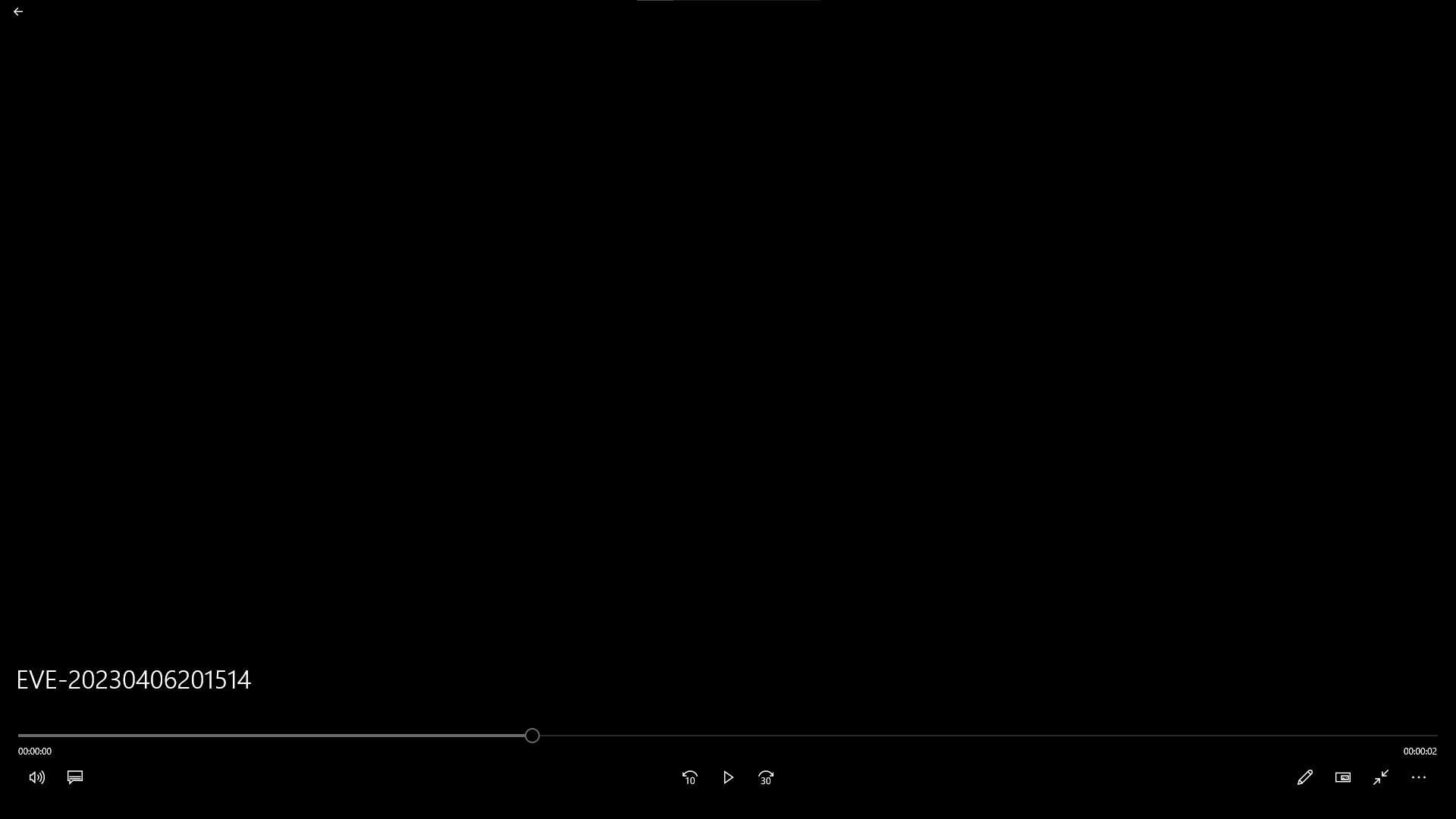
I would appreciate it a lot if someone is able to help and get this fixed. Yesterday it was working just fine with no problems.
Make sure the Render Resolution setting matches the Ingame/Native resolution.
*That’s mostly the cause of black screens.